Sublimet
Sticker
Video
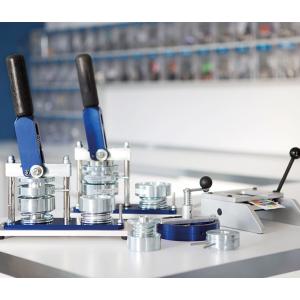
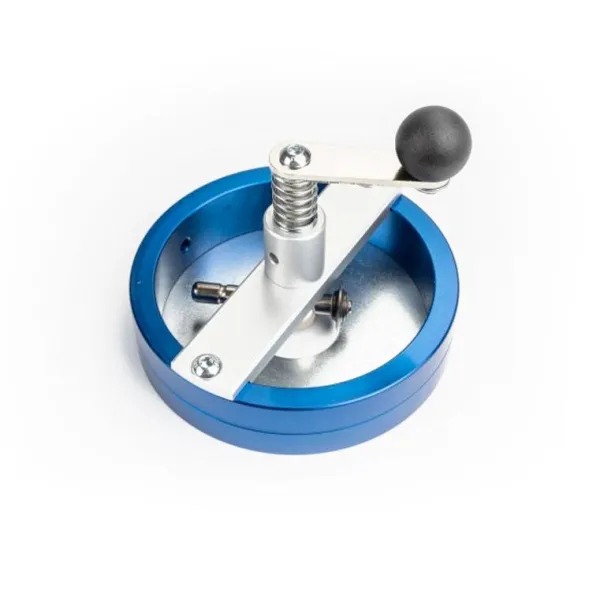
Badge paper cutter CM-500

Badge paper cutter CM-500

(5)
(0)

€77.00 Price excludes VAT

€93.17 Price includes VAT

The Badge paper cutter CM-500 is a tool for cutting the paper of magnets and round badges, which can cut 6 available sizes Ø25, Ø31, Ø38, Ø50, Ø59 and Ø75 mm. It has a viewing window that allows you to view the design, to center it and cut the designs with great precision. This cutter is very fast and easy to use. You can cut several papers up to 150 gr at the same time. Includes 6 templates corresponding to each of the sizes to be cut, to make clean cuts, leaving the designs ready to assemble. It is the ideal complement to any of the machines for mounting magnets and round badges.

Main Features:

  • Visualization: Has a wide window to center the design and cut precisely.
  • Cut multiple papers at the same time. Suitable for cutting sheets of paper up to 150 gr.
  • Quick and easy:The paper is ready to be mounted on the badge or magnet.
  • Cutting size: has round templates to cut designs for 6 sizes Ø25, Ø31, Ø38, Ø50, Ø59 and Ø75 mm.
  • Compatibility: cuts the designs to mount magnets or round badges with the machines B-700, B-500 and B-150.
  • The tool cuts the design slightly larger in diameter to each badge size, because the edge of the paper will bend to hold onto the back of the sheet or magnet.
Measure of the badge or magnet Measure of the cut
Ø 25 mm Ø 34 mm
Ø 31 mm Ø 41 mm
Ø 38 mm Ø 51 mm
Ø 50 mm Ø 61,5 mm
Ø 59 mm Ø 67 mm
Ø 75 mm Ø 87 mm

This product includes:

  • The circular cutter.
  • 6 discs to delimit the cutting diameters.
  • Cutting mat.
 

How to use:

  1. Print the design on paper, using your usual printer. Remember to leave a paper edge, which will bend to hold onto the back of the badge or magnet.
  2. Adjust the cutter blade to the appropriate size.
  3. Place the metal disc of the chosen size on the bottom of the cutter. It is important to use this tembadge as it will allow you to center your design.
  4. Place the paper on top of the cutting mat. You should always cut on this mat to avoid wear or damage to the blade.
  5. Position the cutter over the design using the viewing window to center the design. Depending on the paper used, you can cut multiple papers at the same time.
  6. Hold the tool firmly with one hand to prevent the assembly from slipping.
  7. With the other hand, rotate the handle without using too much force until all the papers are cut.
  8. The design is ready to mount on the badge or magnet.
Product dimensions
13 x 13 x 13 cm
Weight
1,03 Kg
Shape
Round
Badge size
Ø 25 mm
Ø 31 mm
Ø 38 mm
Ø 50 mm
Ø 59 mm
Ø 75 mm
133030007
000802
Sticker
Sticker
Sticker
Sticker
Sticker
Sticker
Sticker
Sticker

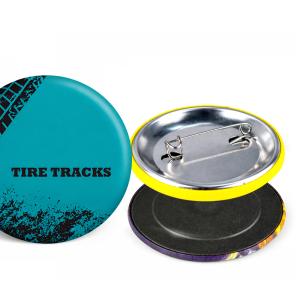
Create custom magnets and badges:

  1. Printing:
    • Select the design you want to print. It can be a logo, a text, an image or a photograph, or a combination of these.
    • It is recommended to use a design program to create templates according to the size of the badge or magnet. The template can include guide lines to facilitate cutting and assembly.
    • Remember to leave a paper edge, which will bend to hold onto the back of the badge or magnet.
    • Print the design on paper, using your usual printer.
  2. Cutting:
    • To cut the paper to the correct size and shape it is recommended to use a cutter or die cutter of the size that corresponds to the badge or magnet you want to create.
    • Place the paper in the chosen cutter so that the design is exactly centered in the cutter's viewing window.
    • Depending on the cutter used, cut the paper.
    • The paper is ready to mount on the badge or magnet.
  3. Assembly:
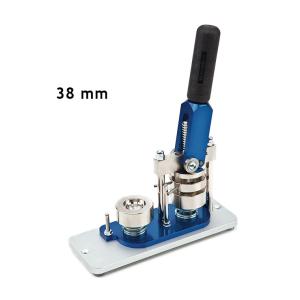
    • Place the front piece of the badge or magnet in the mold 1 of the machine. If you are using the B-150, you must first place the supplied metal washer in the lower mold.
    • Lay the paper with the design exposed on top of the front piece.
    • Cover the paper with a piece of polyester of the corresponding size.
    • Rotate the blue base until it stops, so that mold 1 is positioned underneath the upper mold. If using the B-150 machine, place the upper mold in position 1.
    • Pull the lever until it stops. The front of the badge or magnet is now ready and will remain in the upper mold.
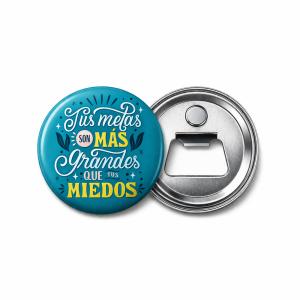
    • Place in the lower mold 2, the selected back part according to the type of badge or magnet that you want to mount. In the case of the B-150 machine, you must first remove the meal washer from the lower mold.
    • The side with the needle, magnet, bottle opener, etc., will be facing down inside mold 2, and will not be visible at the moment.
    • Turn the blue base until mold 2 is underneath the upper mold. In the case of the B-150 machine, you will need to place the upper mold in position 2.
    • Pull the lever as far as it will go, then return it to the normal position.
    • Rotate the base again to remove the finished product.

Machine Compatibility:

MachineCompatible sizesInterchangeable MoldsCutting toolBadgesMagnets
B-900s 78 x 53 mm Paper punch-cutter rectangular
B-700 Ø59 mm Mold Ø59 mm Paper cutter CM-500
Ø50 mm Mold Ø50 mm
Ø38 mm Mold Ø38 mm
Ø31 mm Mold Ø31 mm
Ø25 mm Mold Ø25 mm
B-500 Ø75 mm Paper cutter CM-500
Ø59 mm
Ø50 mm
Ø38 mm
Ø31 mm
Ø25 mm
B-150 Ø59 mm Paper cutter CM-500
Ø38 mm

Compatibility according to Printable Area:

Printable areaMachineCutting toolBadgesMagnets
Ø25 mm B-700 Paper cutter CM-500
B-500
Ø31 mm B-700 Paper cutter CM-500
B-500
Ø38 mm B-700 Paper cutter CM-500
B-500
B-150
Ø50 mm B-700 Paper cutter CM-500
B-500
Ø59 mm B-700 Paper cutter CM-500
B-500
B-150
Ø75mm B-500 Paper cutter CM-500
78 x 53 mm B-900s Paper punch-cutter rectangular

Write your review

Badge paper cutter CM-500

Write your review

Customers who bought this product also bought:

Product added to wishlist
Product added to compare.